
Search engine use
Version of August 5, 2026:
A search engine is available on this blog to help you search for and easily find a post or a lesson using one or more keywords. Here’s how to use it.
Accessing the search engine
The search engine can be accessed by clicking on the white magnifying glass icon on a black background located at the top right of every page on the site.

To start a search
Here are the options offered by the search engine:
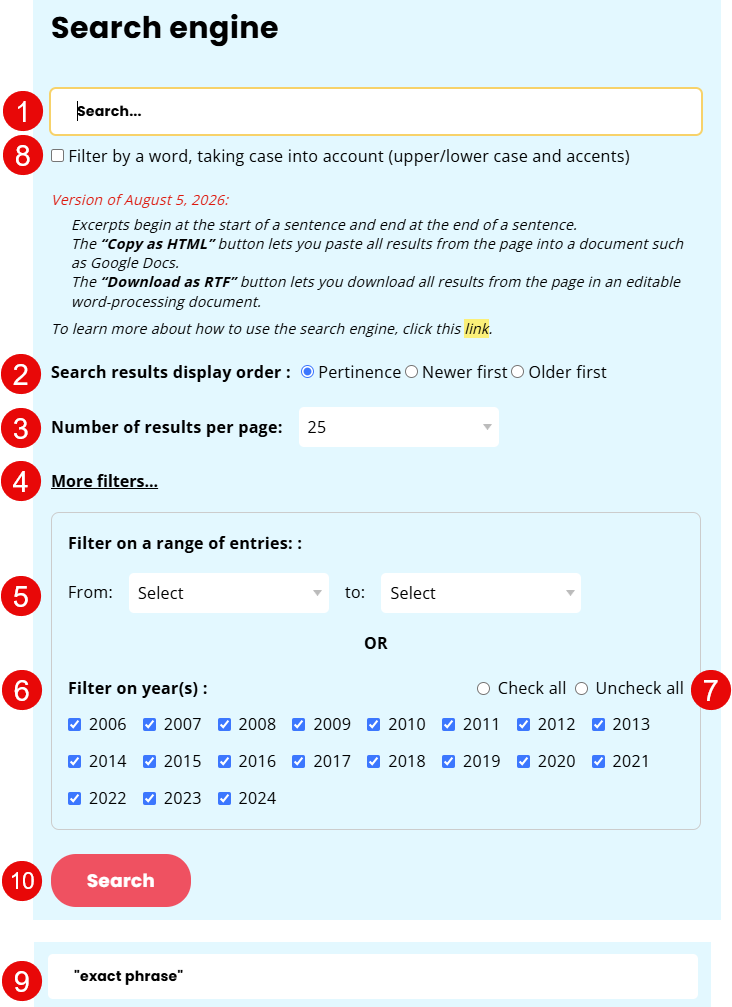
- Enter one or more keywords in the white search box.
- You can choose the order in which the results will be displayed (“Relevance” displays posts first, followed by lessons and replies to the original comments).
- You can choose the number of results displayed on each page: 10, 25 or 50.
- To refine your search, additional filters are available
- By date range
- By one or more years
- Allows you to tick/untick all options
- Filter by a word, taking case into account (upper/lower case and accents)
- To find an exact phrase, place it in quotation marks.
- Click on ‘Search’ to start the search.
Search results
Here are some details about the results page:
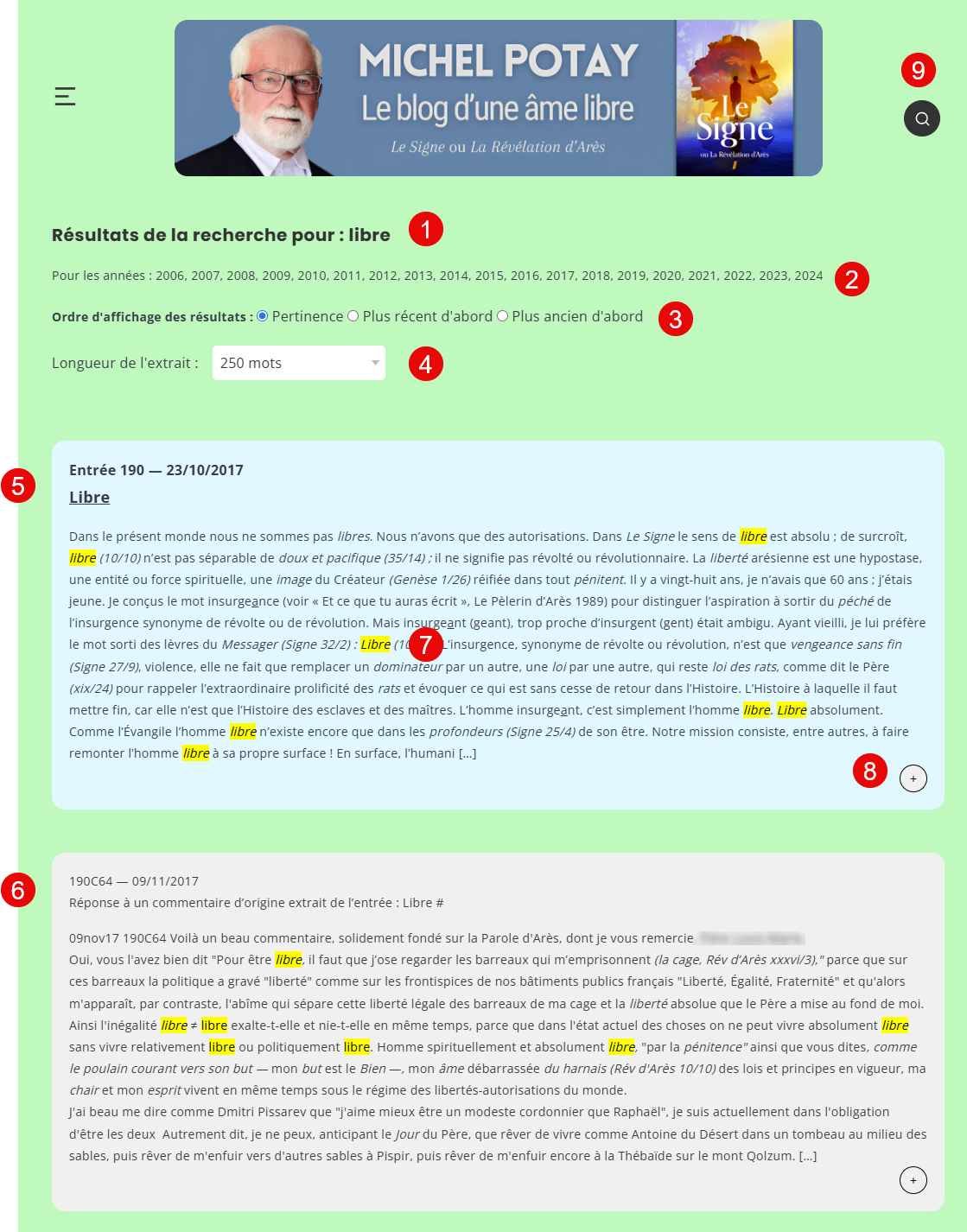
- Reminder of the keyword(s) searched for
- Indication of the year(s), or the filtered entry page(s)
- Order in which results are displayed: it is possible to change the order without restarting a search
- Extract length: you can change the length of the extracts displayed on the results page: 50, 100, 250, 500, 1000 words or full text.
- Results from Entries and Thematic Collections appear on a blue background. At the top of each result is its reference, date and title. The title is clickable and opens the original page in a new tab.
- Results from Responses to original comments appear on a beige background and are preceded by their reference, date and title.
- The search term(s) are highlighted in yellow wherever they appear in the extract.
- By clicking on the + icon, you can read the full text of the relevant extract.
- To modify your search or start a new one, click on the magnifying glass.
If the results span several pages, pagination appears at the bottom of the results page:

- Go to the previous results page
- Go to the next results page
- The page currently being viewed is displayed in bold
- Other available pages
Exporting Search Results
For many users, this blog serves as a spiritual resource as well as a tool for personal or group work—for example, within local congregations.
In this context, it is helpful to be able to easily export search results.
Two options for exporting results are available:

- Copy as HTML: You can paste the selected text into a document such as Google Docs.
Export as RTF: The file can be opened by any word processor.
On each of these copies, in addition to the results, you will find
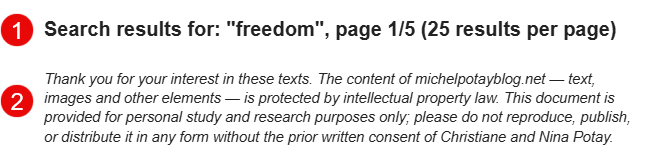
- a summary of the context of your search
- guidelines for using the exported document